
B2 Vacc
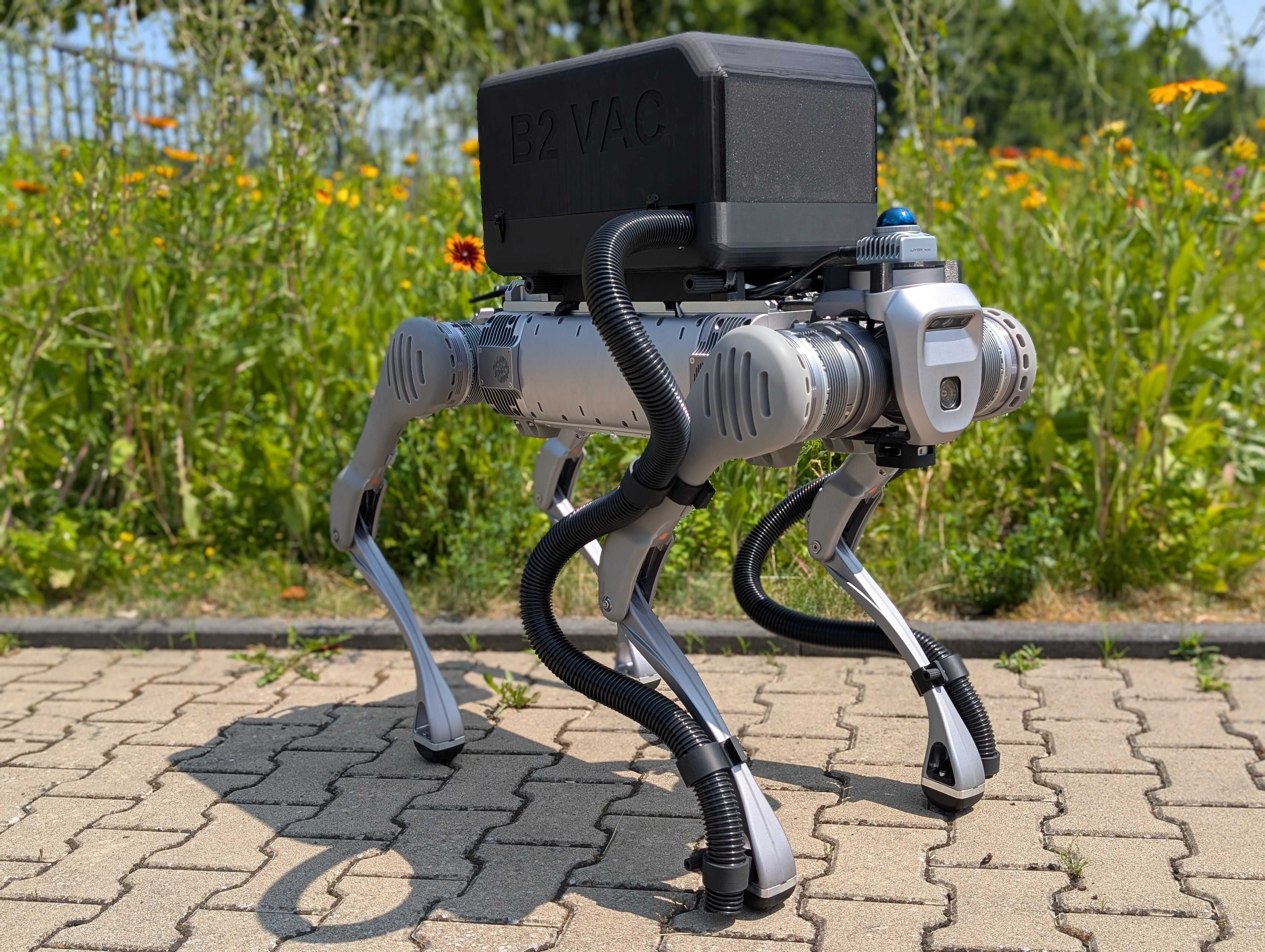
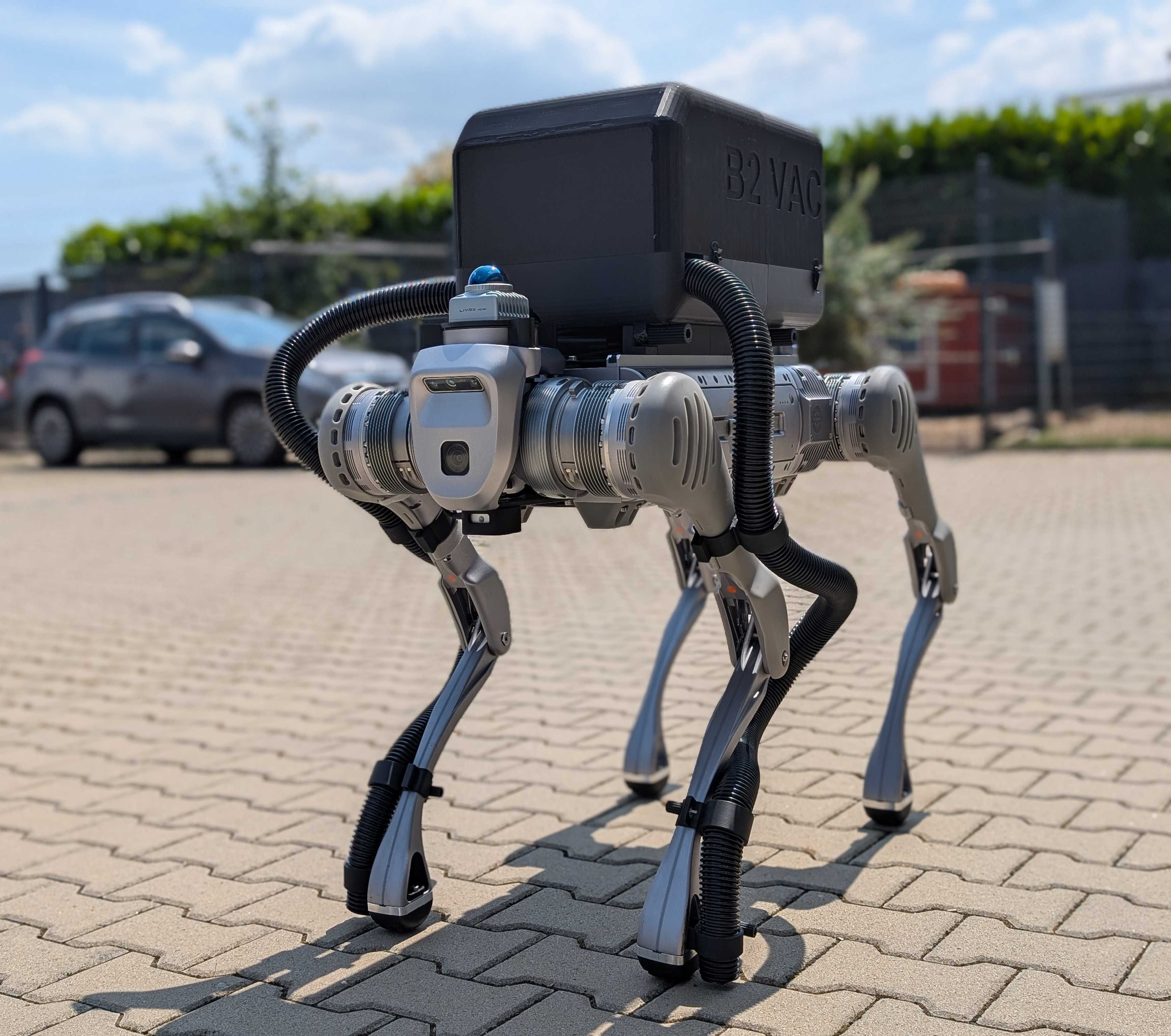
The B2 Vacc is an autonomous vacuum demonstration platform based on the Unitree B2 quadruped robot. This system showcases advanced vision-based navigation and autonomous cleaning capabilities.
System Overview
The B2 Vacc platform integrates:
Unitree B2 Quadruped: High-performance legged locomotion
Robosense LiDAR: 3D perception for navigation and mapping
Intel RealSense D435i: Depth camera for close-range perception
Vision-based Detection: AI-powered mission detection system
Webserver Interface: Remote monitoring and control
Network Configuration
IP Addresses:
Name |
IP Address |
Username |
Password |
|---|---|---|---|
B2 MCU |
192.168.123.161 |
x |
x |
B2 Robosense Lidar |
192.168.123.162 |
x |
x |
B2 Onboard PC |
192.168.123.164 |
unitree |
Unitree0408 |
IP Reference:
192.168.123.161- B2 MCU192.168.123.164- B2 Auxiliary PC (LAN only)
Note
This guide describes how to interface with the B2 robot using Ubuntu 20.04 and ROS2 Humble.
Important
Make sure B2 Edu is fully set up, paired, and verified through the app.
Static Network Connection
To configure the network initially:
Connect your PC to the B2 using a LAN cable.
In Ubuntu Settings → Network, click + to add a new connection.
In IPv4 settings, set the method to Manual: - Address:
192.168.123.51- Netmask:24Save and restart your network.
To verify the connection:
ifconfig
ping 192.168.123.164
To SSH into the B2:
ssh -X unitree@192.168.123.164
# Password: Unitree0408
Note
It is recommended to disable all other networks while connecting to B2 to avoid interference.
Quick Start
Drivers Startup:
Note
Drivers should already be configured by the MBS-Team.
To launch RViz:
ros2 launch b2_viz view_robot.launch.py
Teleoperation:
ROS_DOMAIN_ID=10 ros2 run teleop_twist_keyboard teleop_twist_keyboard \
  cmd_vel:=/b2_unit_001/hardware/cmd_vel

ROS_DOMAIN_ID=10 ros2 run teleop_twist_keyboard teleop_twist_keyboard \
  cmd_vel:=/b2_unit_001/controls/cmd_vel
Robot Modes
Warning
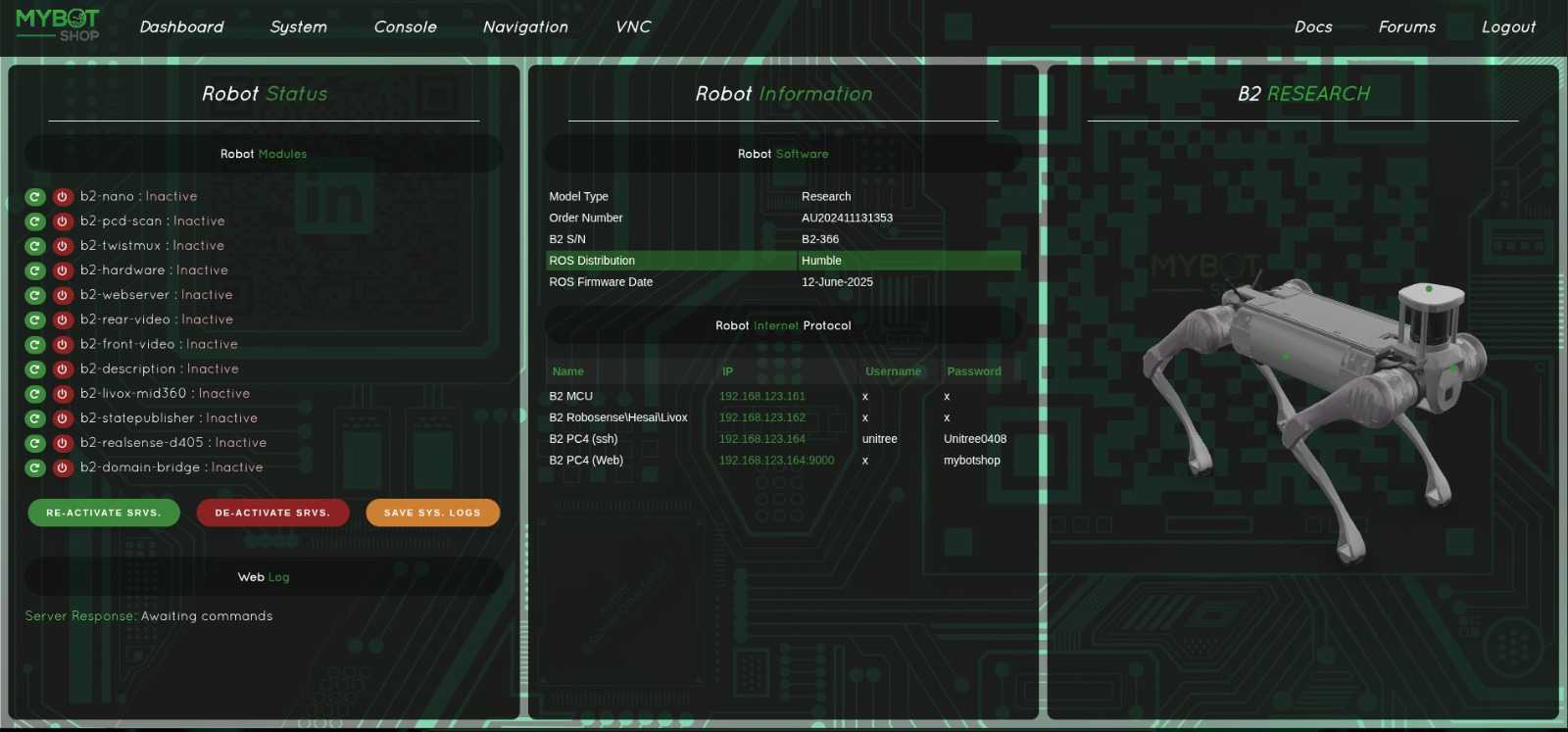
At startup, only the webserver is active. Please click Reactivate Services to enable all functionalities.
Once reactivated, the robot will sit and then stand up - transitioning from AI Mode to Sports Mode.
Be cautious: Sports Mode is very fast and responsive.
Available Modes:
damp- Damping mode (safe state)stand_up- Stand up from lying positionstand_down- Lie down safelyrecovery- Recovery mode for fault conditionsstop_move- Stop all movementgait_idle- Idle gait (standing)gait_trot- Trotting gaitgait_trot_running- Running trot gaitgait_visualwalk- Visual walking modegait_flatwalk- Flat terrain walkingspeed_low/speed_high- Speed settingsbody_height_low/body_height_mid/body_height_high- Body height settings
Modes are defined in: b2_platform > src > b2_highroscontrol.cpp
Mode Control:
# Stand up
ROS_DOMAIN_ID=10 ros2 service call /b2_unit_001/hardware/modes \
  b2_srvs/srv/B2Modes "{request_data: 'stand_up'}"

# Stand down
ROS_DOMAIN_ID=10 ros2 service call /b2_unit_001/hardware/modes \
  b2_srvs/srv/B2Modes "{request_data: 'stand_down'}"
Note
stand_up and stand_down have been verified. Please refer to Unitree documentation for details on other modes.
Sensors
Realsense D435i:
The D435i must be manually connected from the main PC to PC4.
It is off by default.
ros2 launch b2_depth_camera realsense_d435i.launch.py
Note
The Realsense D405 is also off by default.
Realsense Configuration:
The launch file enables continuous depth streaming without lag.
To modify parameters, update:
b2_depth_camera/launch/realsense_d4XX.launch.py
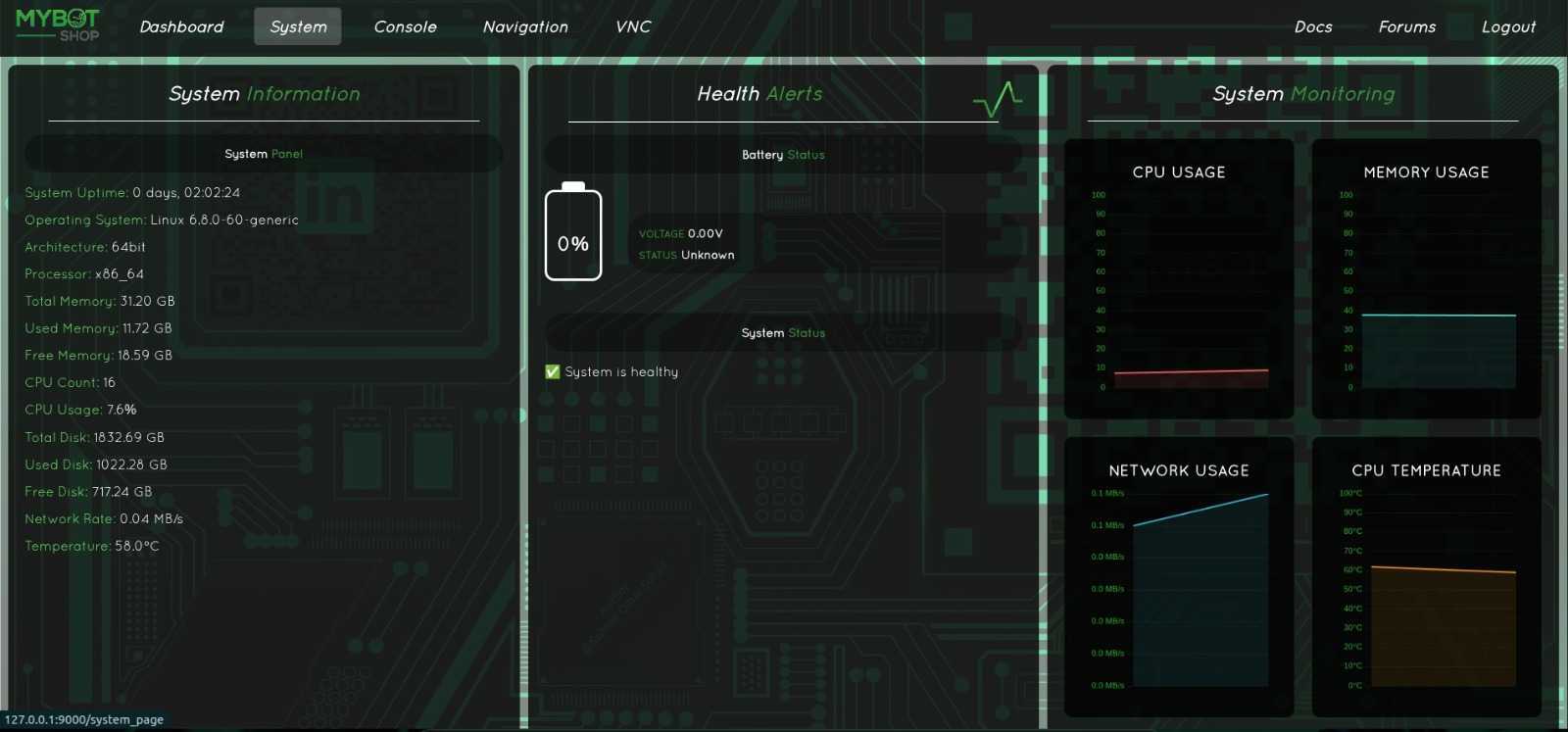
Webserver
The B2 web server can be accessed by connecting to the B2’s Wi-Fi network:
http://<robot_ip>:9000
Replace <robot_ip> with the actual IP address of the B2 (e.g., 192.168.123.164).
Note
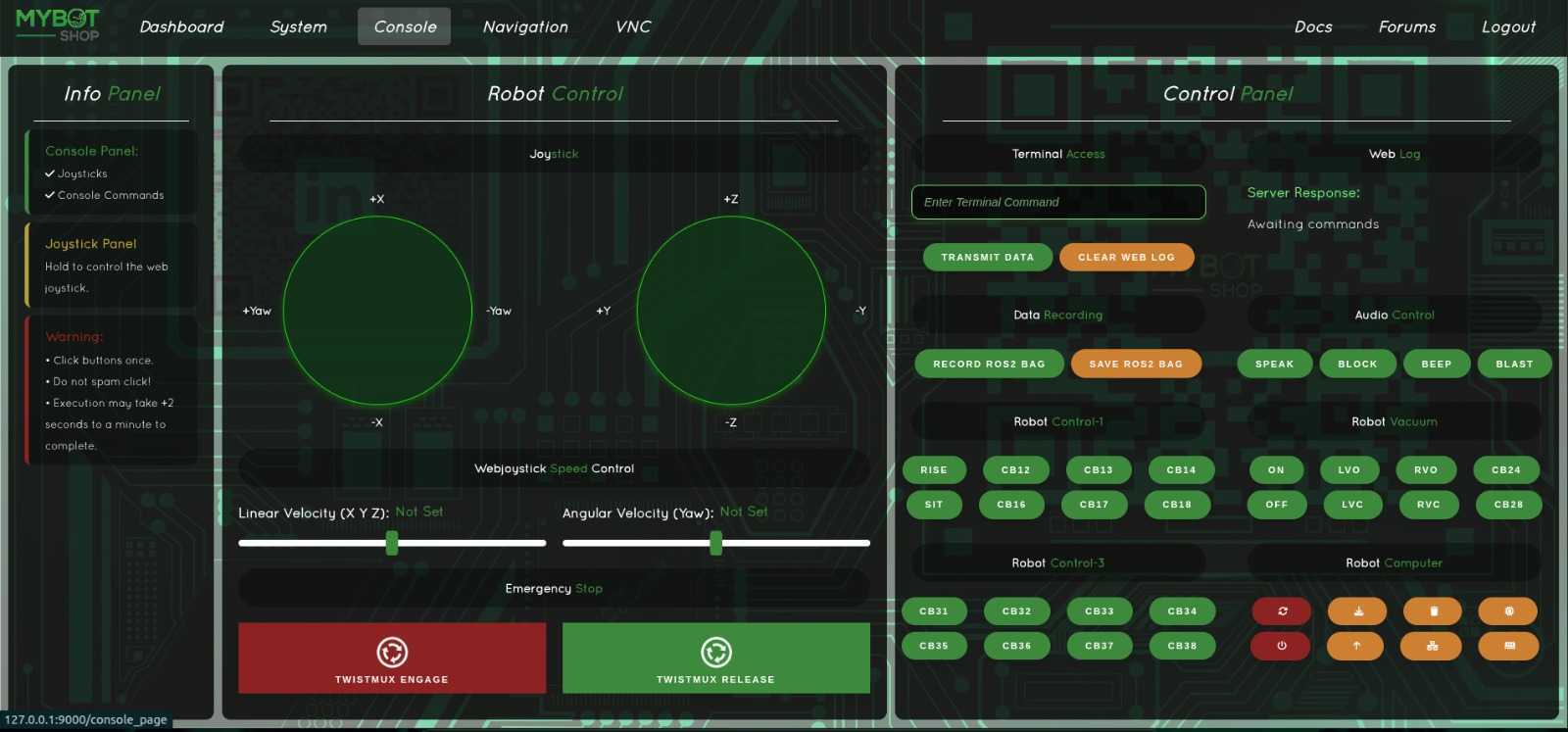
The webserver provides useful control panels and monitoring features. Ensure your PC is connected directly to the B2 network.

Autonomous Vacuum Demo
Launch mission detection and movement:
ros2 launch b2_vision_action mission.launch.py
Save training images for RoboFlow dataset:
ros2 run b2_vision_action libimagecapture.py
Train the vision model:
python3 train.py
Motion behavior configuration:
Modify: b2_vision_action/b2_vision_action/librosnode.py
Webserver control:
http://192.168.68.168:9000/console_page
Simulation

B2 Fortress Simulation:
ros2 launch b2_gazebo b2_fortress_simulation.launch.py
B2W Fortress Simulation:
ros2 launch b2_gazebo b2w_fortress_simulation.launch.py
Cleanup After Simulation:
ros2 run b2_gazebo kill_gz.sh
Joint Control
Effort Trajectory Control:
ros2 action send_goal /joint_effort_controller/follow_joint_trajectory \
  control_msgs/action/FollowJointTrajectory -f "{
  trajectory: {
    joint_names: [
      'FL_hip_joint', 'FL_thigh_joint', 'FL_calf_joint',
      'FR_hip_joint', 'FR_thigh_joint', 'FR_calf_joint',
      'RL_hip_joint', 'RL_thigh_joint', 'RL_calf_joint',
      'RR_hip_joint', 'RR_thigh_joint', 'RR_calf_joint'
    ],
    points: [
      {
        positions: [0.0, 0.9, -1.5, 0.0, 0.9, -1.5,
                    0.0, 0.9, -1.5, 0.0, 0.9, -1.5],
        time_from_start: {sec: 2, nanosec: 0}
      }
    ]
  }
}"
B2W Wheeled Movement:
# Move Forward
ros2 topic pub /velocity_controller/commands \
  std_msgs/msg/Float64MultiArray "{data: [-1.0, -1.0, -1.0, -1.0]}"

# Move Backward
ros2 topic pub /velocity_controller/commands \
  std_msgs/msg/Float64MultiArray "{data: [10.0, 10.0, 10.0, 10.0]}"

# Stop Movement
ros2 topic pub /velocity_controller/commands \
  std_msgs/msg/Float64MultiArray "{data: [0.0, 0.0, 0.0, 0.0]}"
Auto-Startup Services
The B2 does not automatically start ROS jobs unless explicitly configured. By default, only the system.launch.py in b2_bringup is launched.
Check startup status:
sudo service b2-<service_name> status
Status Indicators:
Red marker - Service failed
Green marker - Service running correctly
Grey marker - Service not started
Restart a service:
sudo service b2-<service_name> restart
Install new startup configuration:
Modify b2_bringup/system.launch.py, then:
ros2 run b2_bringup startup_installer.py
Camera Streaming
Front Camera:
gst-launch-1.0 udpsrc address=230.1.1.1 port=1720 multicast-iface=eth0 \
  ! application/x-rtp, media=video, encoding-name=H264 \
  ! rtph264depay ! h264parse ! avdec_h264 ! videoconvert ! autovideosink
Rear Camera:
gst-launch-1.0 udpsrc address=230.1.1.1 port=1721 multicast-iface=eth0 \
  ! application/x-rtp, media=video, encoding-name=H264 \
  ! rtph264depay ! h264parse ! avdec_h264 ! videoconvert ! autovideosink
Installation
B2 Nvidia Board:
Set hostname and directory:
sudo hostnamectl set-hostname B2-366
sudo mkdir /opt/mybotshop && sudo chown -R unitree:unitree /opt/mybotshop
Sync system time:
sudo timedatectl set-timezone Europe/Berlin
sudo date -s "$(wget --method=HEAD -qSO- --max-redirect=0 google.com 2>&1 | sed -n 's/^ *Date: *//p')"
Run installer:
cd /opt/mybotshop/src/mybotshop
./b2_install.bash
Build ROS2 workspace:
cd /opt/mybotshop
colcon build --symlink-install
source install/setup.bash
Update
.bashrc:
source /opt/ros/humble/setup.bash
source /opt/mybotshop/src/mybotshop/b2_bringup/config/setup.bash
Host PC (Ubuntu 20.04 with ROS2 Humble):
Ensure ROS2 Humble is installed but not sourced before first run.
Install dependencies:
./b2_install.bash
Create workspace and clone
qre_b2to/opt/mybotshopBuild Cyclone DDS:
colcon build --packages-select cyclonedds
Source workspace:
source install/setup.bash
source /opt/ros/humble/setup.bash
Build repository twice:
colcon build --symlink-install
Source the B2 bringup config:
source /opt/mybotshop/install/setup.bash
source /opt/mybotshop/src/mybotshop/b2_bringup/config/setup.bash
Miscellaneous
Sync Host to Unitree PC:
rsync -avP -t --delete -e ssh src unitree@192.168.123.164://opt/mybotshop
SSH Key Setup:
ssh-copy-id unitree@192.168.123.164
# Password: Unitree0408
Xacro to URDF:
export B2_DESC=1
ros2 run xacro xacro \
  /opt/mybotshop/src/mybotshop/b2_description/xacro/robot.xacro \
  > /opt/mybotshop/src/mybotshop/b2_description/xacro/b2.urdf
Software Updates
The latest software updates for QRE B2 can be pulled from the qre_b2 GitHub repository.
Note
If you do not have access to the repository, contact support@mybotshop.de with your GitHub Username and Purchase ID.